

Most people using Claude Code type their prompts manually every time. They describe what they want, paste in relevant code, explain the project context, and hope Claude has enough information to give a useful response. It works, but it wastes time and context window tokens on information that could be gathered automatically.
Dynamic Context Injection changes that. It lets you create reusable skills that automatically inject live project data (git status, build outputs, file listings, test results, configuration values) directly into your prompts before Claude even sees them. Instead of describing your project state, Claude receives the actual state. Instead of pasting code snippets, the relevant files are pulled in automatically. It is one of the reasons Claude Code has attracted a billion-dollar user base, including non-coders who build automation without writing a line of code.
If you have read our overview of Dynamic Context Injection, you know what it is and why it matters. This guide is the practical companion: eight steps that take you from zero to building your own DCI-powered skills, with real examples you can adapt to any project.
Why Dynamic Context Matters
Every interaction with an AI coding assistant starts with context. The better the context, the better the output. But manually assembling context for every prompt is tedious and error-prone. You forget to mention the current branch, skip a relevant config file, or paste outdated test output.
"Context engineering is the delicate art and science of filling the context window with just the right information for the next step."
- Andrej Karpathy, Founding Member, OpenAI, February 2024
Karpathy's framing captures exactly what DCI solves. Rather than relying on you to manually fill the context window, DCI skills do it programmatically, pulling in precisely the data Claude needs for the task at hand. One project that documented their context engineering approach achieved a 54% reduction in initial context tokens (from 7,584 to 3,434) while simultaneously improving capability, because the injected context was more relevant than what a human would typically paste in.
| Approach | Setup Time | Context Accuracy | Reusability |
|---|---|---|---|
| Manual prompts | 2-5 minutes per prompt | Depends on memory | None: retype every time |
| Static templates | 30 seconds (copy/paste) | Outdated after first use | Moderate: needs manual updates |
| Dynamic Context Injection | Instant (automated) | Always current | Fully reusable across projects |
Tools you'll need
- Claude Code: The AI coding assistant (desktop app or CLI)
- Terminal / PowerShell: For running and testing commands
- Text editor: For creating SKILL.md files
What you'll need
- Claude Pro subscription or Anthropic API key
- A project directory you want to create skills for
Section 1: Foundations
Before building practical skills, you need to understand the three core concepts: how DCI preprocessing works, where skill files live, and the syntax for injecting your first command output.
Step 1: Understand How Dynamic Context Injection Works
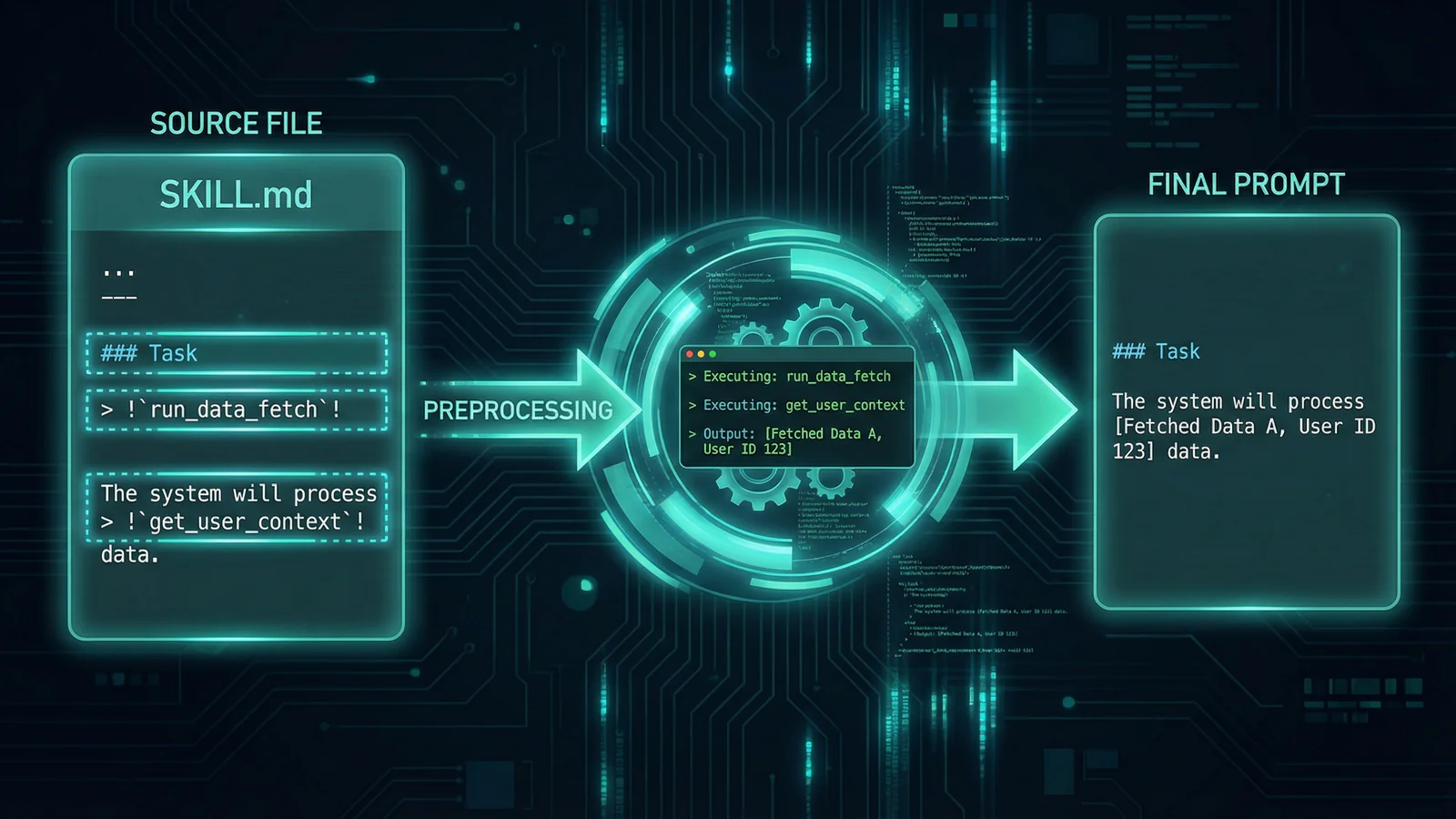
Dynamic Context Injection uses the !`command` syntax inside Claude Code skill files. When you invoke a skill, every !`command` placeholder runs as a shell command before the prompt is sent to Claude. The command's output replaces the placeholder text, so Claude receives a prompt filled with real, current data rather than a static template.
Here is the critical distinction: Claude never sees the command. It only sees the output. If your skill contains !`git branch --show-current`, Claude does not see that instruction. It sees main (or whatever your current branch is). This is not Claude running a command during the conversation. This is preprocessing that happens before Claude is involved at all.
A simple example makes this concrete. Consider a skill file that contains:
## Current project state
- Branch: !`git branch --show-current`
- Last commit: !`git log --oneline -1`
- Modified files: !`git status --short`

Based on the above, suggest what I should work on next.
When invoked, Claude actually receives something like:
## Current project state
- Branch: feature/user-auth
- Last commit: a1b2c3d Add login form validation
- Modified files:  M src/auth.js
                   M tests/auth.test.js
                   ?? src/forgot-password.js

Based on the above, suggest what I should work on next.
Claude now has perfect context about your project state without you typing a word of it. Every time you run this skill, the data is fresh. That is the power of DCI: automated, always-current context that makes every prompt more effective.
Step 2: Create Your First Skill File
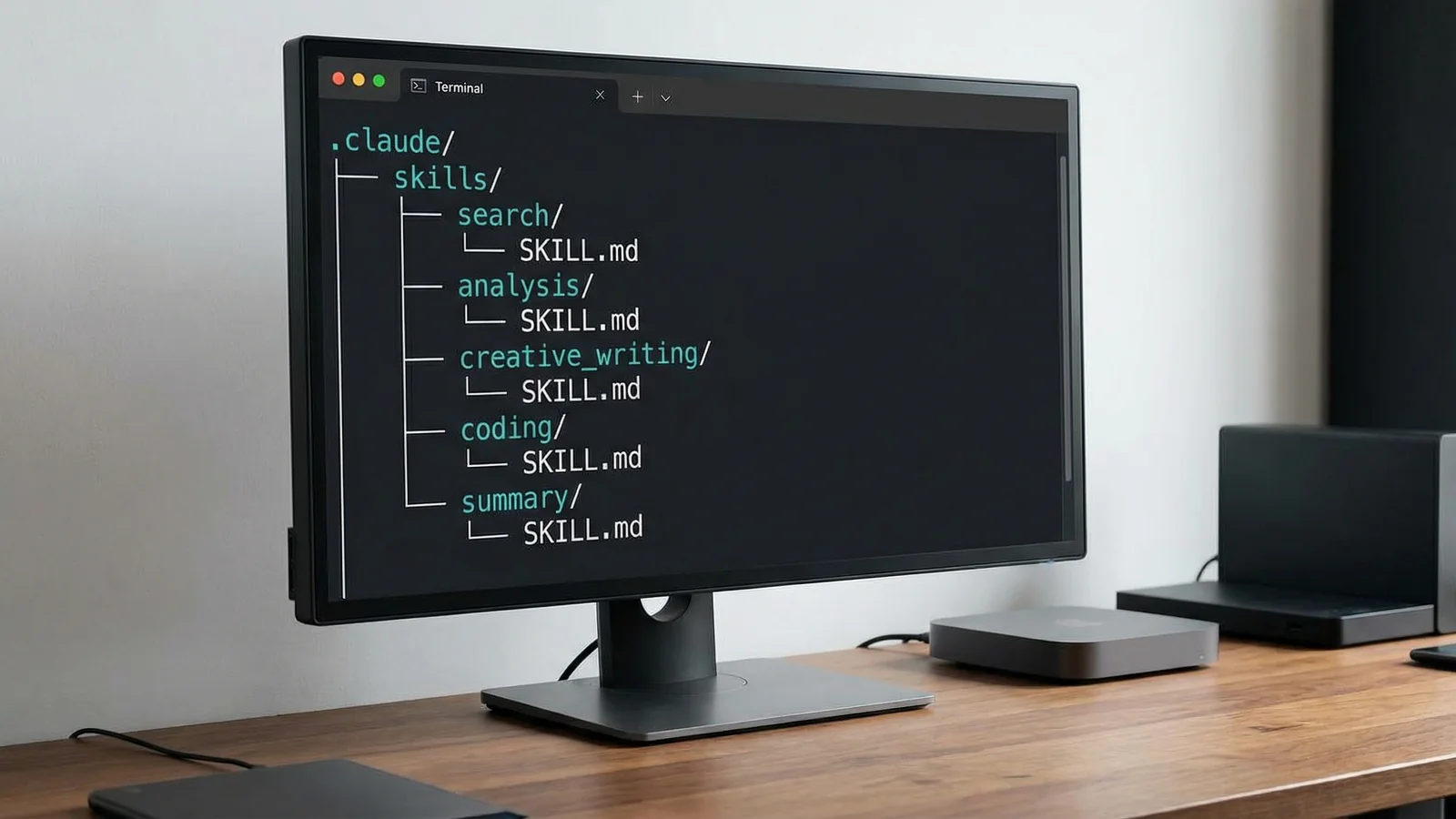
Skills live in a specific directory structure. You have two main options for where to create them:
| Location | Path | Scope |
|---|---|---|
| Personal | ~/.claude/skills/skill-name/SKILL.md |
Available in all your projects |
| Project | .claude/skills/skill-name/SKILL.md |
This project only, shared via version control |
Create your first skill by making the directory and file. For a personal skill that works everywhere:
# Create the skill directory
mkdir -p ~/.claude/skills/project-status

# Create the SKILL.md file
touch ~/.claude/skills/project-status/SKILL.md
Now add the YAML frontmatter and skill content. Open SKILL.md in your editor:
---
name: project-status
description: Show current project status with git info and recent changes
---

# Project Status

Show me a summary of the current project state and suggest priorities.

## Context
- Current branch: !`git branch --show-current`
- Recent commits: !`git log --oneline -5`
- Uncommitted changes: !`git status --short`
- Current directory: !`pwd`
The frontmatter between the --- markers is required. At minimum you need name and description. The description is particularly important. Claude Code uses it to decide when to suggest this skill to you automatically.
Other useful frontmatter options include:
allowed-tools: Restrict which tools the skill can use (e.g.,Bash(git *), Read)context: fork: Run the skill in an isolated subagent so it does not affect your main conversationagent: Explore: Use a specialised agent type (Explore, Plan, or general-purpose)model: haiku: Use a faster, cheaper model for simple tasks
Step 3: Add Your First Dynamic Injection
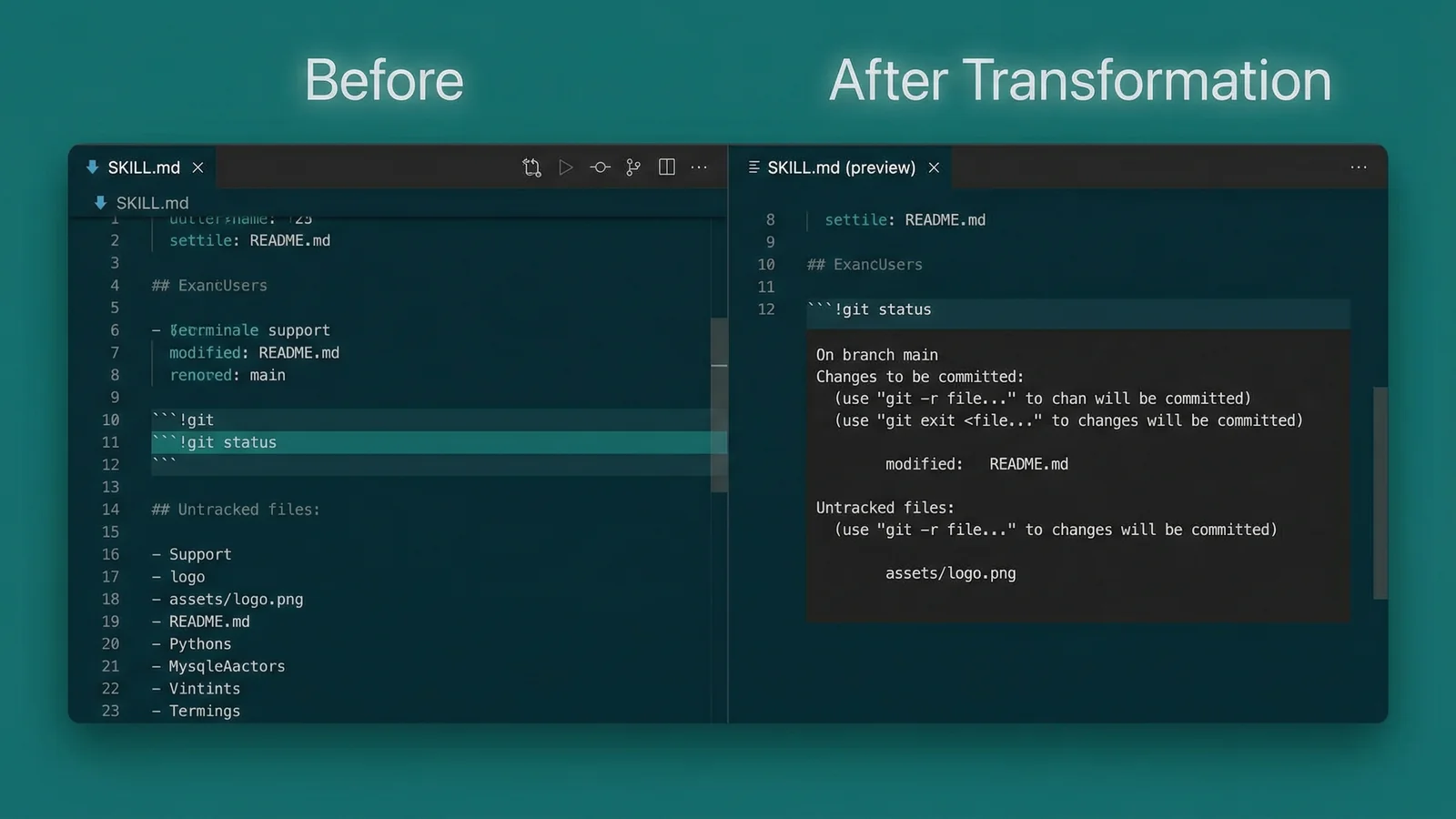
With your skill file created, it is time to test it. Open Claude Code in your project directory and the skill will be available automatically. You can invoke it by name or Claude Code may suggest it based on the description you wrote.
Here are the most useful injections to start with:
# Project information
!`git branch --show-current`           # Current branch name
!`git log --oneline -5`                # Last 5 commits
!`git status --short`                  # Modified files
!`git diff --stat`                     # Changed file summary

# Environment
!`node --version`                      # Node.js version
!`python --version`                    # Python version
!`date +%Y-%m-%d`                      # Current date

# Project structure
!`ls -la`                              # Directory listing
!`cat package.json | head -20`         # Package info
!`wc -l src/**/*.js 2>/dev/null`       # Line counts
"The boring yet crucial secret behind good system prompts is test-driven development. You don't write down a system prompt and find ways to test it. You write down tests and find a system prompt that passes them."
- Amanda Askell, Alignment Finetuning Researcher, Anthropic, March 2024
Askell's advice applies directly to skill creation. Before writing an elaborate skill, define what you want Claude to do with the injected data. Then work backwards: what specific data does Claude need to produce that output? Inject only that data, nothing more. Lean context is more effective than a firehose of information.
Tip: Start with one or two injections and test the skill. Add more only when Claude's output shows it needs additional context. Over-injecting wastes your context window and can actually reduce output quality by overwhelming Claude with irrelevant data.
Section 2: Practical Use Cases
The foundations are useful, but DCI becomes really powerful when you apply it to real workflows. These three examples cover deployment, content, and site maintenance, the kinds of tasks where automated context makes the biggest difference.
Step 4: Build a Deployment Readiness Checker
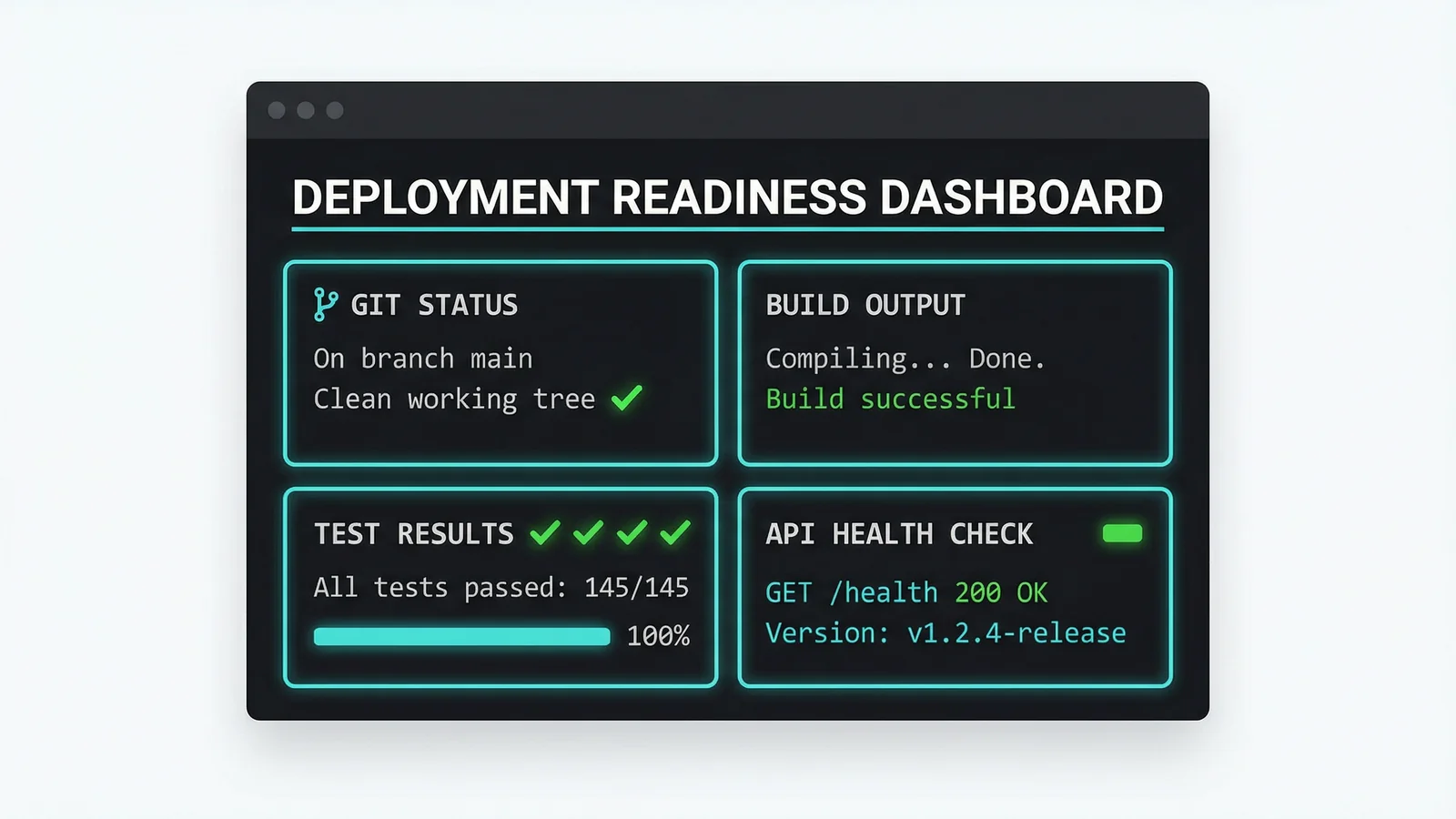
Before deploying any project, you want to check several things: is the build clean? Are tests passing? Are there uncommitted changes? Is the right branch checked out? DCI lets you build a skill that gathers all of this automatically.
Create .claude/skills/deploy-check/SKILL.md in your project:
---
name: deploy-check
description: Check if the project is ready for deployment by analysing git status, build output, and test results
allowed-tools: Bash(npm *), Bash(git *), Read
---

# Deployment Readiness Check

Analyse the following project state and tell me whether it is safe
to deploy. Flag any concerns as BLOCKING or WARNING.

## Git Status
- Branch: !`git branch --show-current`
- Uncommitted changes: !`git status --short`
- Commits ahead of origin: !`git log origin/main..HEAD --oneline 2>/dev/null || echo "Could not compare with origin"`
- Last commit: !`git log --oneline -1`

## Build Status
!`npm run build --if-present 2>&1 | tail -20`

## Test Results
!`npm test --if-present 2>&1 | tail -30`

## Package Check
- Outdated packages: !`npm outdated 2>/dev/null | head -10 || echo "No outdated packages"`

## Decision Required
Based on ALL of the above data, provide a clear DEPLOY or DO NOT DEPLOY
recommendation with specific reasons.
When you invoke this skill, Claude receives real build output, actual test results, and current git state, all injected automatically. It can spot issues like uncommitted changes on the wrong branch, failing tests, or outdated dependencies that might cause production problems. No more forgetting to run the tests before you deploy.
Step 5: Create a Content Research Skill
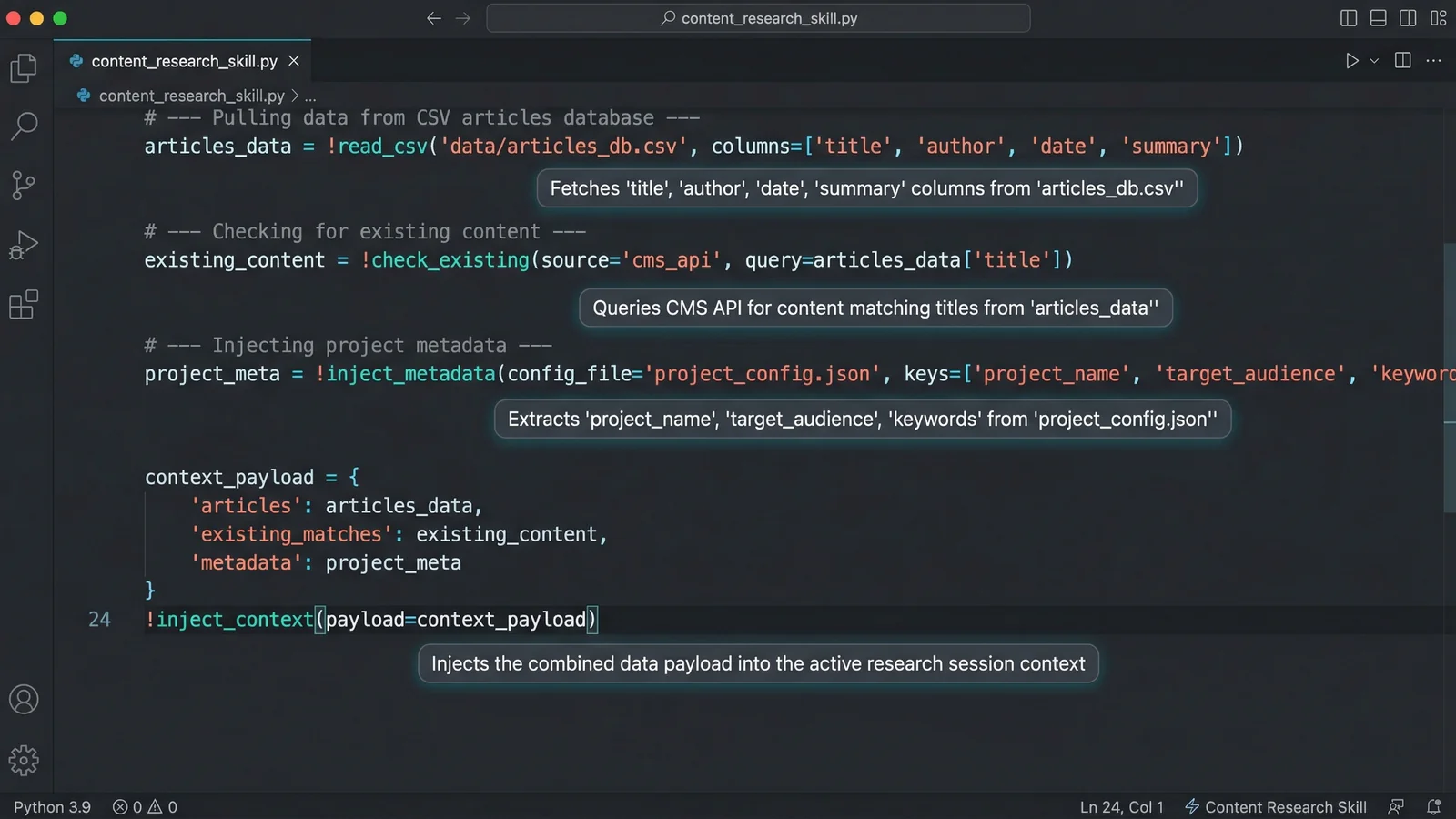
If you manage a blog or content site, one of the most valuable skills you can build injects your existing content data so Claude can spot gaps and suggest new topics. This is especially powerful for AI visibility work where you need to understand what topics you have already covered.
Create .claude/skills/content-gaps/SKILL.md:
---
name: content-gaps
description: Analyse existing content and suggest new article topics based on gaps in coverage
context: fork
agent: Explore
---

# Content Gap Analysis

Review our existing content and suggest new articles that would
strengthen our topical coverage and AI visibility.

## Published Articles
!`find content/posts -name "*.md" -exec basename {} .md \; 2>/dev/null | sort || echo "No posts directory found"`

## Article Categories and Counts
!`find content/posts -name "*.md" -exec grep -l "category:" {} \; 2>/dev/null | xargs grep "category:" | sed 's/.*category: //' | sort | uniq -c | sort -rn || echo "No category data found"`

## Recent Articles (last 10)
!`ls -t content/posts/*.md 2>/dev/null | head -10 | xargs -I {} basename {} .md || echo "No recent posts"`

## Site Configuration
!`cat config.yaml 2>/dev/null | head -30 || cat config.toml 2>/dev/null | head -30 || echo "No config found"`

## Task
1. Identify topics we have NOT covered that are related to our existing content
2. Suggest 5-10 new article ideas with working titles
3. For each suggestion, explain WHY it fills a gap
4. Prioritise topics that would help with AI search citations
This skill adapts to your project structure. The injected commands use fallbacks (|| echo "...") so the skill works even if your project uses a different content structure. Claude receives the actual article list, category distribution, and recent publishing history, context that would take you several minutes to compile manually.
For WordPress sites or PHP-based projects like this one, you might adjust the injections to read from your data files instead. If you manage a WordPress site, our sister site's guide to AI WordPress tools that transform your website without coding covers complementary automation approaches:
## Published Articles
!`grep "'title'" includes/data/articles.php | head -30`

## Categories Used
!`grep "'category'" includes/data/articles.php | sort | uniq -c | sort -rn`
Step 6: Build a Site Audit Skill
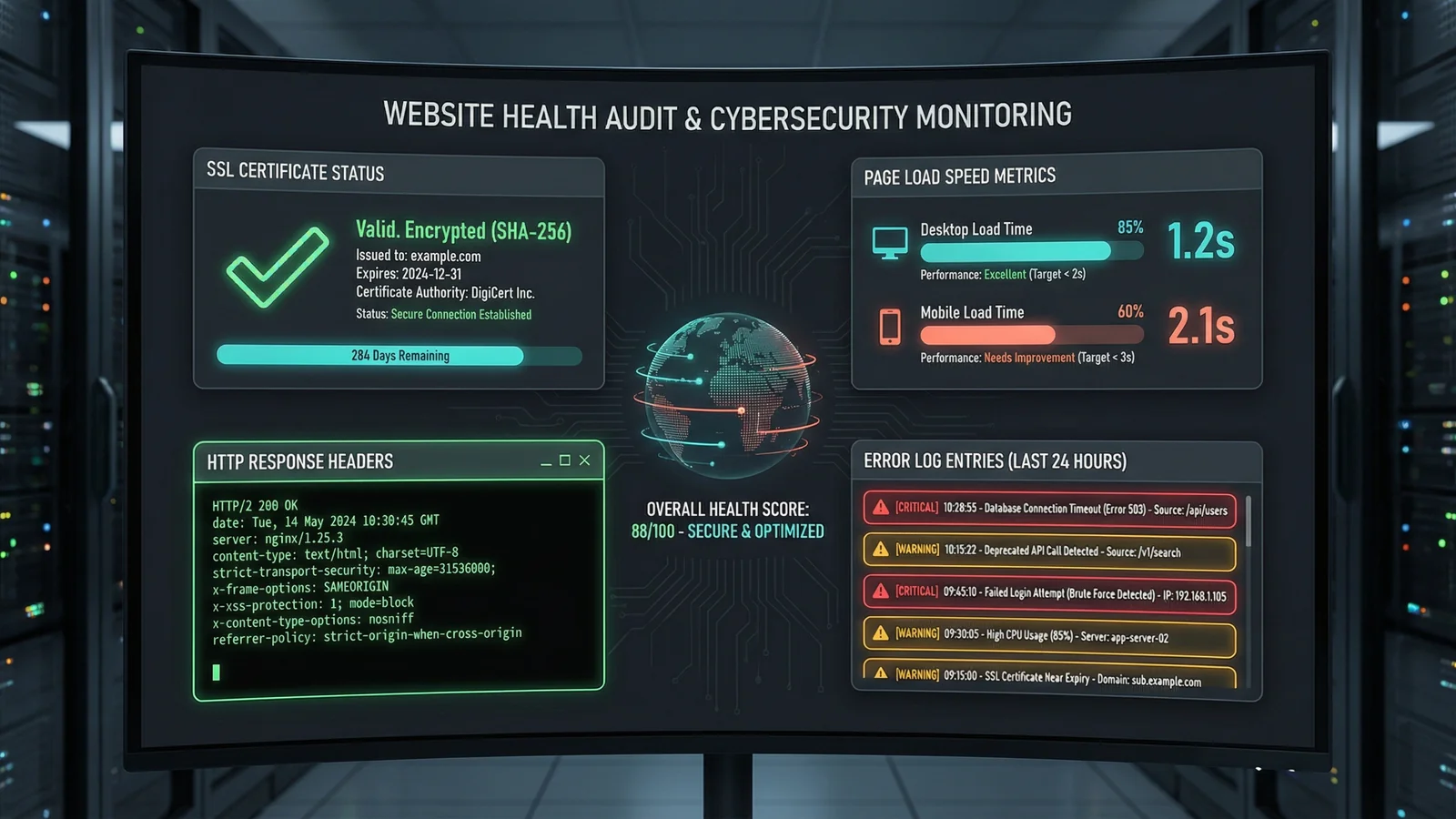
Web developers and site owners can build a skill that performs a quick health check by injecting real performance data. This is particularly useful for optimising for AI search and citations, where site speed and technical health affect whether AI systems trust and cite your content.
Create ~/.claude/skills/site-audit/SKILL.md:
---
name: site-audit
description: Run a quick website health audit checking performance, SSL, headers, and error logs
allowed-tools: Bash(curl *), Read
---

# Website Health Audit

Analyse the following site health data and provide a prioritised
list of issues to fix, grouped by severity (Critical, Warning, Info).

## SSL Certificate
!`echo | openssl s_client -connect $1:443 -servername $1 2>/dev/null | openssl x509 -noout -dates 2>/dev/null || echo "Could not check SSL for $1"`

## Response Time
!`curl -o /dev/null -s -w "Total: %{time_total}s\nDNS: %{time_namelookup}s\nConnect: %{time_connect}s\nTTFB: %{time_starttransfer}s\nSize: %{size_download} bytes\nHTTP: %{http_code}" https://$1 2>/dev/null || echo "Could not reach $1"`

## HTTP Security Headers
!`curl -sI https://$1 2>/dev/null | grep -iE "(strict-transport|content-security|x-frame|x-content|referrer-policy|permissions-policy)" || echo "No security headers found"`

## Error Log (last 20 entries)
!`tail -20 /var/log/apache2/error.log 2>/dev/null || tail -20 /var/log/nginx/error.log 2>/dev/null || echo "No accessible error log found"`

## Robots.txt Check
!`curl -s https://$1/robots.txt 2>/dev/null | head -20 || echo "No robots.txt found"`

## Recommendations
Based on ALL the data above, provide:
1. Critical issues (fix immediately)
2. Warnings (fix this week)
3. Informational (consider improving)
Invoke this skill with your domain as an argument: when you pass the domain name, the $1 placeholders are replaced with your domain. Claude receives actual response times, real SSL expiry dates, real security headers (or the lack of them), and recent error log entries, a full health snapshot gathered in seconds.
Tip: Run this skill weekly as part of your site maintenance routine. The injected data is always fresh, so you will catch new issues (expired SSL certificates, degraded response times, new error patterns) before they affect your visitors or your search rankings.
Section 3: Advanced Patterns
Once you are comfortable building basic skills, these advanced patterns let you create more sophisticated automations that filter data, handle errors gracefully, and accept parameters for flexible reuse.
Step 7: Chain Commands and Use Conditional Logic
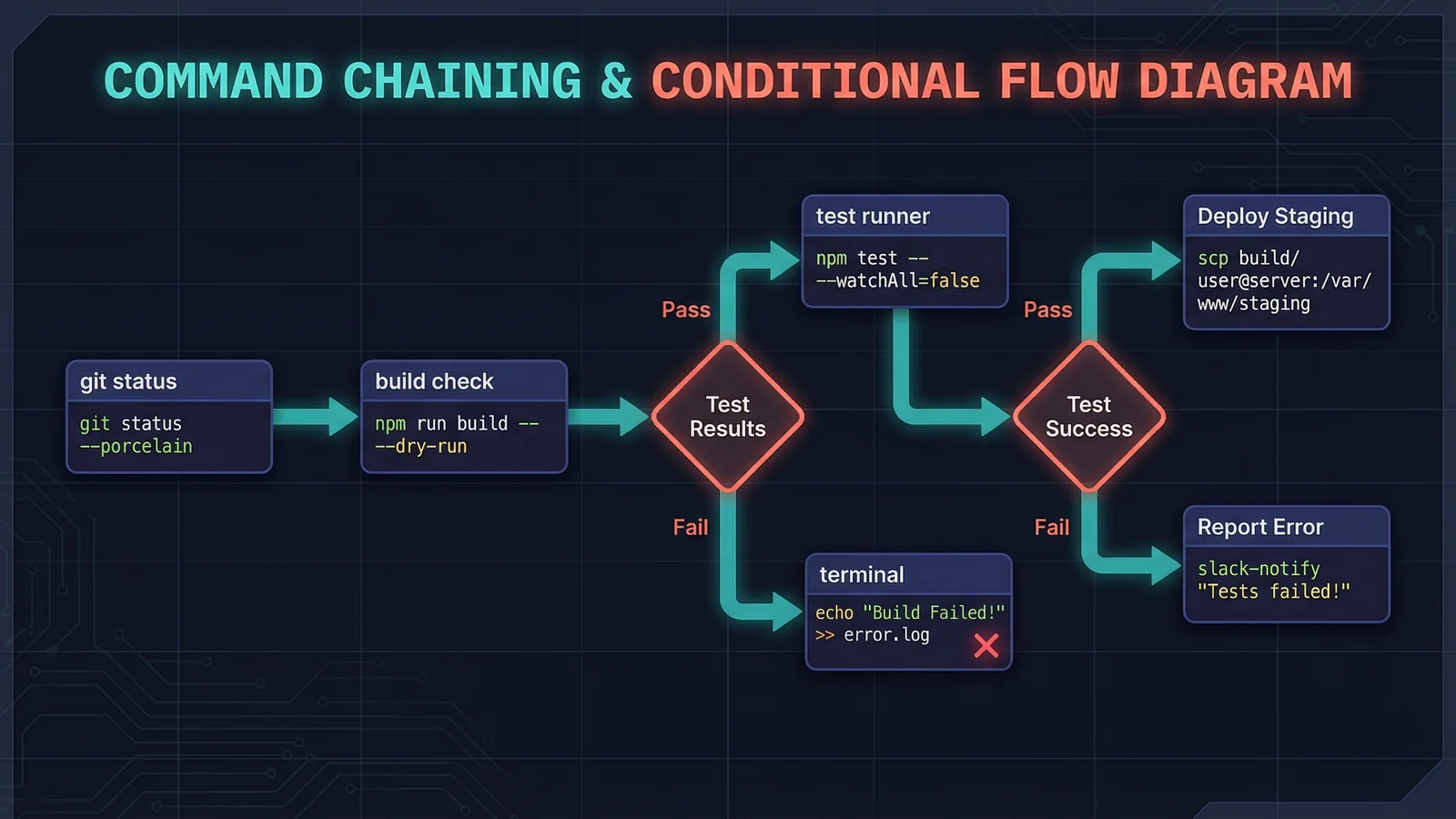
The !`command` syntax runs standard shell commands, which means you have the full power of pipes, conditionals, and text processing available. This lets you filter and transform data before Claude sees it, reducing noise and keeping your context window focused.
Piping to filter output:
# Only show JavaScript files with changes
!`git diff --name-only | grep "\.js$"`

# Count errors by type from a log file
!`cat error.log | grep -oP "(?<=\[)\w+(?=\])" | sort | uniq -c | sort -rn`

# Get the 5 largest files in the project
!`find . -type f -not -path "./.git/*" -exec du -h {} + | sort -rh | head -5`
Conditional fallbacks for reliability:
# Try npm, fall back to yarn, fall back to message
!`npm test 2>&1 || yarn test 2>&1 || echo "No test runner found"`

# Check if a config file exists before reading it
!`[ -f .env ] && cat .env | grep -v "SECRET\|KEY\|PASSWORD" || echo "No .env file found"`

# Platform-aware commands
!`which python3 > /dev/null 2>&1 && python3 --version || python --version 2>/dev/null || echo "Python not installed"`
Multi-command sequences:
# Get both the branch and its tracking status
!`git branch -vv --no-color | grep "^\*"`

# Count files by extension in the project
!`find . -type f -not -path "./.git/*" | sed 's/.*\.//' | sort | uniq -c | sort -rn | head -10`
The important principle is to process data before injection, not after. If you only need JavaScript errors from a log file, filter them in the shell command rather than injecting the entire log and asking Claude to find the JavaScript errors. Less noise means better responses and fewer wasted tokens.
"I think 'context engineering' describes the core skill better: the art of providing all the context for the task to be plausibly solvable by the LLM."
- Simon Willison, Creator of Datasette, June 2025
Willison's definition reinforces why filtering matters. The goal is not to inject all data. It is to inject the right data. A well-filtered injection of 20 relevant lines outperforms a raw dump of 500 lines every time. DCI with pipes and filters is context engineering at its most practical.
Step 8: Use Arguments and Supporting Files
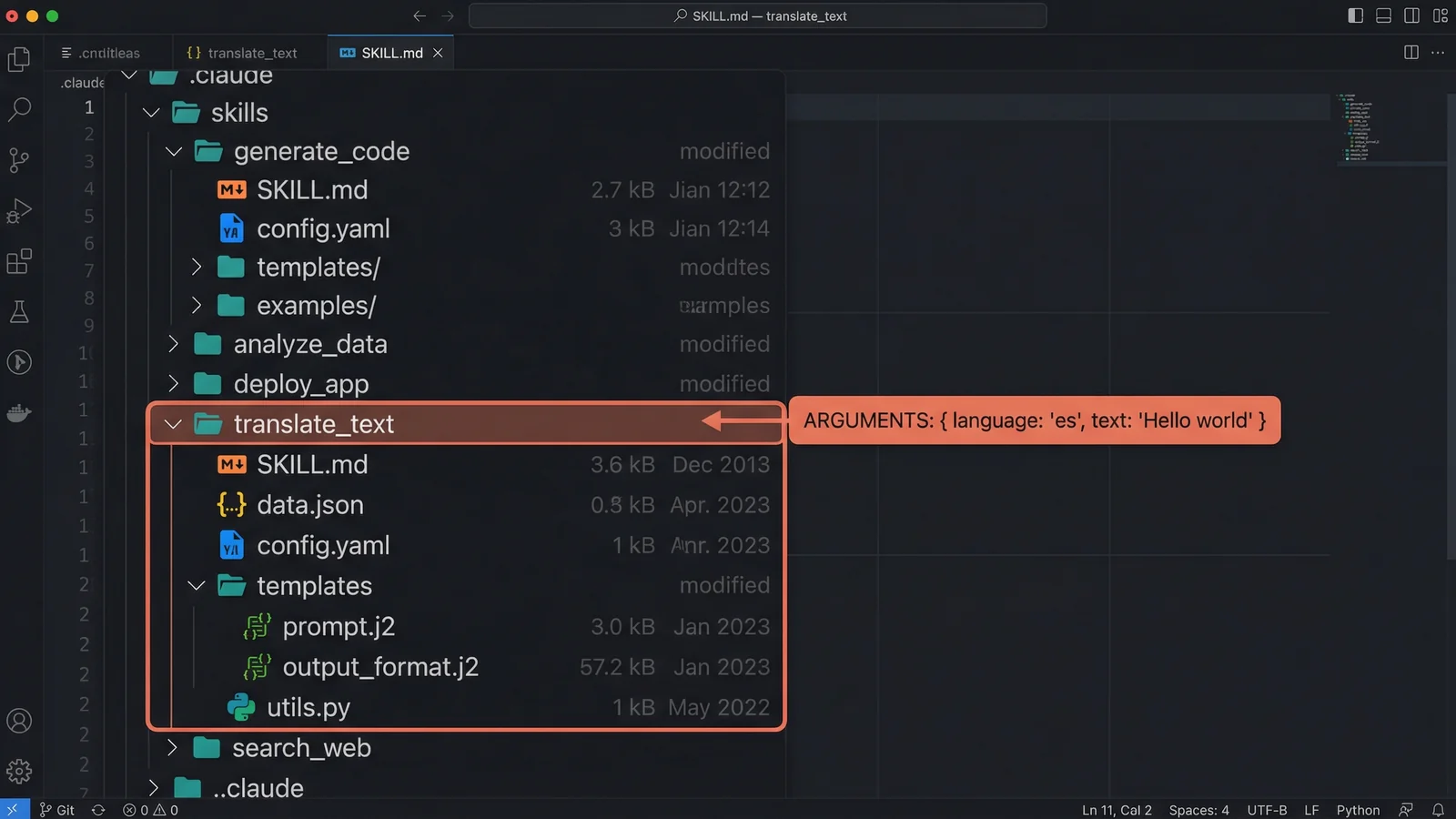
The most powerful skills combine DCI with arguments and supporting files to create self-contained automation packages. Arguments let a single skill handle multiple scenarios. Supporting files provide static reference data that Claude can use alongside the dynamic injections.
Argument syntax:
# $ARGUMENTS - All arguments as a single string
# $ARGUMENTS[0] or $0 - First argument
# $ARGUMENTS[1] or $1 - Second argument

---
name: analyse-component
description: Deep analysis of a specific component or module
---

# Component Analysis: $ARGUMENTS

Analyse the component or module named "$ARGUMENTS" in this project.

## Component Files
!`find . -type f -name "*$0*" -not -path "./.git/*" 2>/dev/null | head -20`

## Related Tests
!`find . -type f -name "*$0*test*" -o -name "*$0*spec*" 2>/dev/null | head -10`

## Import Dependencies
!`grep -r "import.*$0\|require.*$0" --include="*.js" --include="*.ts" -l 2>/dev/null | head -10`
Invoking this skill with /analyse-component UserAuth would inject all files related to UserAuth, its tests, and everything that imports it, giving Claude full context about a specific part of your codebase.
Supporting files:
Any files placed alongside your SKILL.md in the skill directory are automatically available as context. This is useful for including static reference data:
.claude/skills/code-review/
├── SKILL.md              # The skill definition with DCI
├── standards.md          # Your team's coding standards
├── checklist.json        # Review checklist items
└── examples/
    ├── good-example.js   # Example of well-written code
    └── bad-example.js    # Example of code to avoid
Claude automatically reads these supporting files when the skill is invoked, combining the static standards with dynamically injected code for review. Your coding standards stay consistent across every review without being repeated in the skill prompt itself.
Here is a practical example combining arguments, DCI, and supporting files:
---
name: code-review
description: Review code changes against team standards with automated context
context: fork
allowed-tools: Read, Grep, Glob
---

# Code Review: $ARGUMENTS

Review the following changes against our team standards
(see standards.md in this skill directory).

## Changes to Review
!`git diff $0 --stat`

## Detailed Diff
!`git diff $0 -- "*.js" "*.ts" "*.jsx" "*.tsx" | head -200`

## Modified Files
!`git diff $0 --name-only`

## Review Against
- Team standards: see standards.md
- Review checklist: see checklist.json
- Good patterns: see examples/good-example.js

Provide specific, actionable feedback for each file changed.
Invoke with /code-review HEAD~3 to review the last three commits, or /code-review main to review all changes against the main branch. The dynamic injections pull in the actual diff, while the supporting files provide the static review criteria. This is how orchestrating AI CLI agents becomes practical at the individual skill level. Each skill is a self-contained automation unit.
Tip: Keep supporting files small and focused. Claude reads them as additional context, so a 50-line coding standards document is far more effective than a 500-page engineering handbook. Extract only the rules that apply to the skill's purpose.
Frequently Asked Questions
How do I add dynamic data to Claude Code prompts?
Use the !`command` syntax inside a Claude Code skill file (SKILL.md). The shell command between the backticks runs before Claude sees the prompt, and the output replaces the placeholder. For example, !`git status` injects the current git status directly into your prompt text.
What is the !backtick syntax in Claude Code custom commands?
The !`command` syntax is a preprocessing directive in Claude Code skills and commands. It executes the shell command before the prompt is sent to Claude, replacing the directive with the command's output. Claude only ever sees the final text with the real data substituted in. It never sees the command itself.
Can Claude Code run shell commands inside prompts?
Yes, but only through the Dynamic Context Injection syntax in skill files and custom commands. The !`command` syntax runs the shell command as a preprocessing step. This is different from Claude running Bash commands during a session. DCI happens before Claude receives the prompt.
Where do I save Claude Code custom skills?
Skills are saved as SKILL.md files in specific directories. For personal skills that work across all projects, use ~/.claude/skills/skill-name/SKILL.md. For project-specific skills, use .claude/skills/skill-name/SKILL.md inside your project root. Project skills are shared with your team through version control.
Does Dynamic Context Injection work on Windows?
Yes. Claude Code runs on Windows, macOS, and Linux. The !`command` syntax executes through the system shell, so on Windows it uses PowerShell or cmd. Use Windows-compatible commands in your injections, such as dir instead of ls, or use cross-platform tools like git and node that work identically on all platforms.
How do I pass arguments to Claude Code skills?
Use $ARGUMENTS to capture all arguments passed when invoking the skill, or $ARGUMENTS[0], $ARGUMENTS[1] etc. for specific positional arguments. You can also use the shorthand $0, $1, $2. For example, a skill invoked with /my-skill production would have $ARGUMENTS[0] equal to "production".
Can I use environment variables in Claude Code skills?
Yes, but not through standard shell $VAR syntax which Claude Code does not expand. Instead, use the !`echo $VAR` injection syntax to read environment variables through a shell command. The built-in variable ${CLAUDE_SESSION_ID} is available directly. For API keys and sensitive values, store them in .env files and read them with !`cat .env | grep KEY`.
What happens if an injected command fails?
If a command inside !`command` fails, the error output (stderr) is typically included in the prompt instead of the expected data. Claude will see the error message and may comment on it. To handle failures gracefully, use shell fallbacks like !`git status 2>/dev/null || echo "Not a git repository"` to provide a sensible default when the command cannot execute.
Want AI Working Harder for Your Business?
Dynamic Context Injection is one way to get more from AI tools. If you want your website to be visible to AI systems when they recommend businesses to customers, you need proper AI visibility. See how AI currently perceives your business with our AI Visibility Checker.
Get in Touch


